Installing Stamp
1. Install the module file
To install Stamp module into your Wowza Streaming Engine server, you need to copy the
downloaded stamp-yyyy.mm.dd.jar file into the lib directory of your Wowza installation.
On Linux this is typically /usr/local/WowzaStreamingEngine/lib
and on Windows this can be C:\Program Files\Wowza Media Systems\Wowza Streaming Engine\lib
After copying the file, you need to restart Wowza Streaming Engine.
At ths point Stamp is ready to be configured in any of your Wowza applications.
2. Place the license file
If you have puchased a license for the module, you need to copy it into the conf directory of your Wowza installation. If you don’t have
a license file, Stamp will start in trial mode allowing you to use it for a 15 minute time period counted from application startup. After that
you need to restart the Wowza application to get a new 15 minute testing session.
You can override the default location and filename of the license file using the stamp.license.file property in your Application.xml file.
On Linux this is typically /usr/local/WowzaStreamingEngine/conf
and on Windows this can be C:\Program Files\Wowza Media Systems\Wowza Streaming Engine\conf
3. Make sure you have fonts in your operating system
If you have a Unix based operating system, you need to make sure you have at least one font installed. To install the font manager and a font, you can run:
sudo apt-get install fontconfig
sudo apt-get install ttf-dejavu
4. Turn on the module in a Wowza application
You can use the Engine Manager interface or XML editor to enable Stamp. You can find both approaches documented below:
Select your desired Wowza application and navigate to the Modules tab. (If you don’t see this tab then you don’t have the “access to advanced settings” enabled for your user)

Click on the Edit button and then on the “+ Add Module…” button and fill in the form with the below data

Restart the application as suggested by the popup message.
Alternatively if you want to enable Stamp for a particular application on your server, you can also simply put the below
configuration under that application’s conf/myapplication/Application.xml file:
<Module>
  <Name>Stamp module</Name>
  <Description>Overlay module</Description>
  <Class>com.streamtoolbox.Stamp</Class>
</Module>
5. Check Installation
Restart Wowza Streaming Engine after copying the files and start streaming activity in the application where you have configured Stamp. The module only gets loaded and started up when the surrounding application is started. You can publish a live stream or connect with a player to make sure that the application is started up. The application stops after a certain amount of idle time and Stamp stops too in this case.
A simple way to wake up the application is invoking a fake playback URL from browser:
You might need to edit the hostname and the port to match your system and it only works if you have HTTP streaming enabled. Otherwise you can push your stream from your encoder or use the test players to trigger the application.
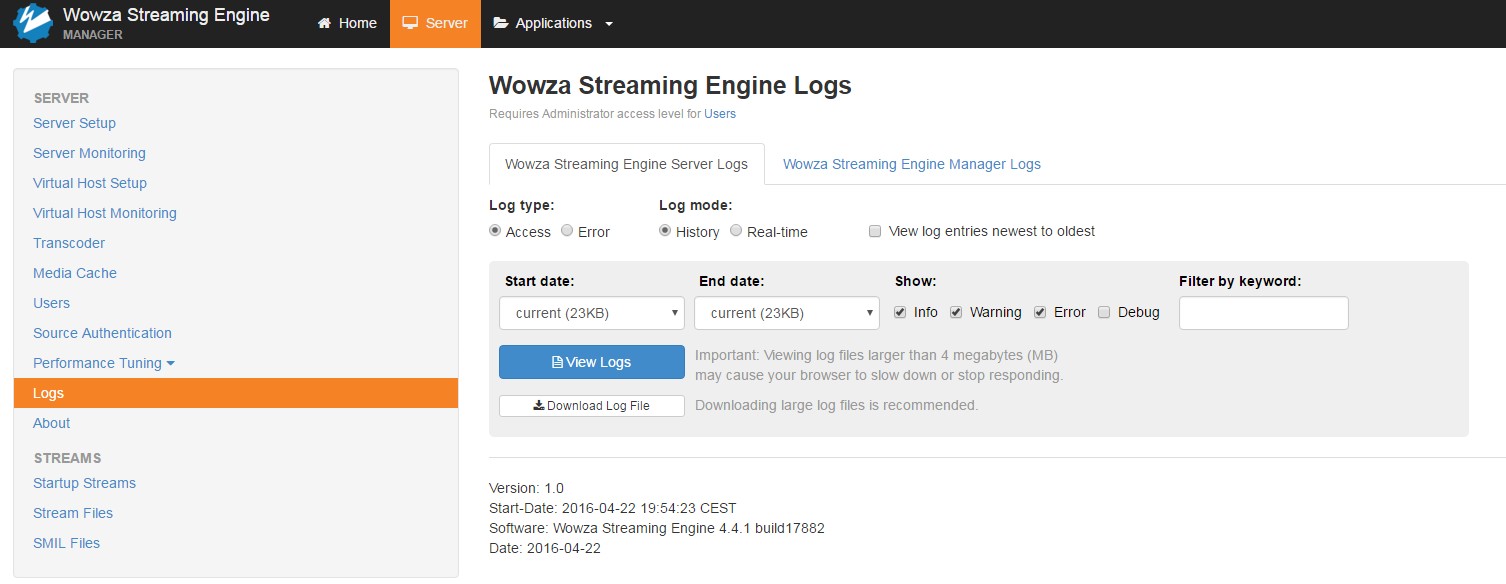
Once triggered, you should see something like this in your wowzastreamingengine_access.log file.
(You can inspect the log file using the Engine Manager)
ERROR server comment - No Stamp license file found in default location W:\wowza-4.8.0\conf so entering trial mode
INFO server comment - Starting Stamp in application 'stamper'
INFO server comment - Stamp version: 1.0.0 - License fingerprint: TRIAL-1
INFO server comment - License owner: nobody
INFO server comment - License expiration date: 2020.05.07
INFO server comment - Time limit in minutes: 15
This is how you can inspect the access log on the web interface
If you see this error message:
Module class not found or could not be loaded. Check [install-dir]/conf/live/Application.xml to
be sure all Modules/Module/Class paths are correct: name:Stamp class:com.streamtoolbox.Stamp
That means that you did not copy the jar files to the right place under lib, or Wowza has no read permission on that file or you haven’t restarted the server.
6. Add Application Properties
Stamp’s behaviour is defined by the application properties that you can edit directly in the Application.xml file of your Wowza application or via the Engine Manager Interface. Please make sure to restart the application after altering the configuration. It is enough to restart the application, there is no need to restart the Streaming Engine itself.
The full reference of application properties can be found in Application Properties
7. Turn on Transcoder
Stamp uses Wowza Transcoder to manipulate the video stream. You need to make sure that Transcoder is enabled in your Wowza application.
8. Playback a transcoded stream
Stamp overlays are only visible on the transcoded stream. That means if you push a live stream called “myStream”, then you need to check the results on “myStream_720p” or similar, depending on your exact
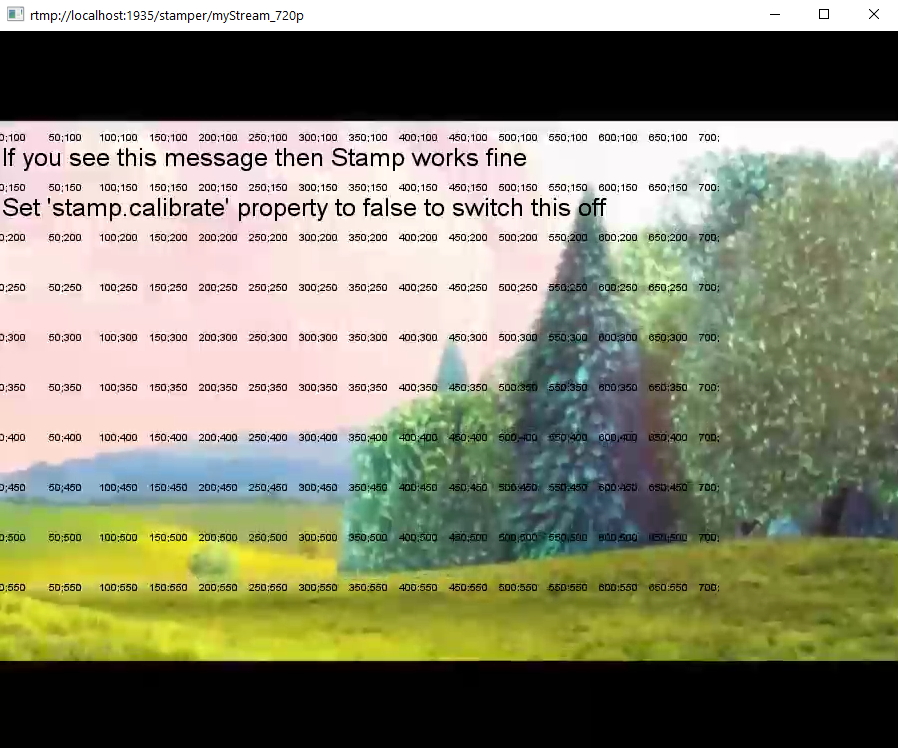
Without explicitly turning the calibration grid off (by setting stamp.calibrate to false) you should see a grid of x,y coordinates
and a welcome message printed onto your stream by default.